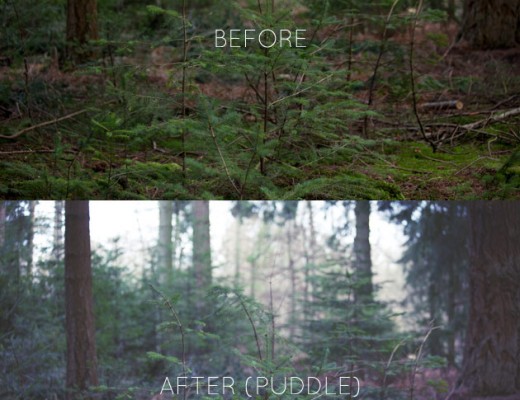
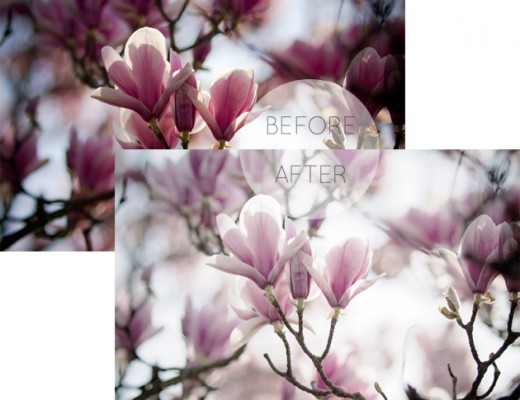
Firstly, let me just say I don’t think I have ever felt the need to turn one of my photographs into a painting before. I am perfectly happy that my photos look like photos and that my paintings look like an explosion in a paint factory.

deer - they look painted, don't you think?

That said, when I saw this technique on the Adobe forums I was intrigued by its simplicity and when I tried it I was like ’OMG’ (yes, I really said that) – and best of all, it is so, so SUPER easy! There are instruction and downloads below for both Photoshop and Lightroom.

i was up all night painting this! (not really)

PHOTOSHOP METHOD – everything happens within Photoshop’s RAW plugin. This is what you do…

  • This works best with images that aren’t too big, so start by downsizing an image to around 1000 pixels wide (or less) and saving as a JPG (this won’t work with very high-res images).
  • Now, using Photoshop’s Bridge, select an image and open it in RAW by pressing Ctrl + R.
  • Once you’re in the RAW dialogue box, slide the ‘Recovery’ all the way up to 100 and then slide the ‘Contrast’, ‘Vibrance’ and ’Saturation’ levels so they’re all on 50.
    Looks weird, doesn’t it? Don’t worry, here’s where the magic happens…
  • Click the third little square tab (the ‘detail’ tab; it has what looks like two little triangles on it). Turn the ’Luminance’ up all the way to 100 and the ‘Luminance Detail’ to about 30.
  • Ta da!

Here’s everything mentioned above packaged up into a convenient preset so you can load and go…
Painterly – camera raw preset

another masterpiece

LIGHTROOM METHOD - this is what you do…

  • This works best with images that aren’t too big, so start by downsizing an image to around 1000 pixels wide (or less) and saving as a JPG (this won’t work with very high-res images).
  • Now, import this image into Lightroom and open the ‘Develop’ tab.
  • In the ‘Basic’ section, slide the ‘Recovery’ all the way up to 100 and then slide the ‘Contrast’, ‘Vibrance’ and ’Saturation’ levels so they’re all on 50.
    Looks weird, doesn’t it? Don’t worry, here’s where the magic happens…
  • In the ‘Detail’ section turn the ’Luminance’ up all the way to 100 and the ‘Detail’ to about 50.
  • Ta da!

Here’s everything mentioned above packaged up into a convenient preset so you can load and go…
Painterly – Lightroom preset

Je suis un artiste!

It took bloody ages painting in all those berries

this was a lovely spot to set up my easel

You now have all the tools you need to trick family and fiends into believing you’re a bone-fide artiste without the need to spend years at art school or all those messy oils and pastels.

You’re welcome.

Step-by-step: how to give your photos an Instagram-style effect

Posted in: Digital, Photography, Tutorials|9 Comments

I’ve had some very positive feedback about the Instagram-style Photoshop actions I created a few days ago – I’m glad you liked them!

As requested, for those with older versions of Photoshop or who use non-Adobe software, here are some instructions will hopefully help you to create the effects for yourself…


1. This All Used To Be Fields

sweet peas - with instagram effect

i) Open image

ii) Create a ‘Color Balance’ adjustment layer…
-Set the ‘Shadows’ to +9, +5, -5
-Set the ‘Midtones’ to -8, -24, -15
-Set the ‘Highlights to +15, +16, -9

color balance

iii) Now create a ‘Hue/Saturation’ adjustment layer above the previous one…
Set the ‘Master’ (default) setting to +3, -23, -1

iv) Make a new layer above image and fill it with the colour R255 G217 B204 and change the mode to ‘Multiply’

v) Make another new layer above this and fill it with the colour R0 G0 B255 and change the mode to ‘Lighten’ and the opacity to 50%

pink and blue layers

And that’s it!


2. Let’s make a mix-tape

tree with instagram effect applied

i) Open image

ii) Create a ‘Curves’ adjustment layer – alter your red, green and blue curves as well as the combined RGB curve (the black line) so they look like this…

curves

iii) Now, select all (Ctrl + A) and go to Edit > Copy merged
Then Ctrl + D to deselect all and then Edit > Paste

iv) In the layers palette, right-click on this new layer and choose ‘Convert to Smart Object’

v) Now go to ‘Filter’ > ‘Lens Correction’

vi) In this new dialogue select the ‘Custom’ tab and halfway down in the ‘Vignete’ settings, choose -50 and +50, then OK.

And you’re done!


3 Old enough to be your father

Brick Lane - with instagram effect applied

i) Open image

ii) Create a ‘Curves’ adjustment layer – make you red, green and blue curves look like this…

rgb curves

iii) Above this create a layer filled with solid colour R255 G0 B204

pink layer

iv) Set the mode of this layer to ‘Soft Light’ and the opacity to 20%

Easy peasy!


Don’t forget that all these effects are available as Photoshop actions which you can download for free.

Instagram-style photoshop actions

Posted in: Free, Life, Photography, Tutorials|12 Comments

It’s fuh, fuh, fuh-reeeezing today! I did go out for a bit this afternoon but have wussed out of braving the elements any further and have decided to have a play around with Photoshop instead.

Nostalgia Ain’t What It Used To Be

If you fancy giving your images a retro-y, vintage-y, Instagram-y look, then you might like to try this FREE set of Photoshop actions I’ve created (click on the images below to take a closer look at the results)…

instagram style photoshop actions - dill

They all use adjustment layers so won’t harm your original image – this also means you can fade the layers up and down to adjust the effects (all these are shown at 100%). Oh, and they’ll work on any size image too.

instagram style photoshop actions - grass

It’s been lots of fun making these (and thinking up the names) – let me know what you think; is this the sort of thing you’d like more of?

instagram style photoshop actions - poppies

Hit the button to download for FREE…

Nostalgia Ain’t What It Used To Be – Photoshop Actions

Enjoy!

(PS – I’ve written a quick guide on how to load and run Photoshop actions, in case it’s new to you).

+++ U P D A T E +++

If you would like to read step-by-step instructions on how to achieve these effects you can find them here.

How to install and run a Photoshop action

Posted in: Tutorials|3 Comments

photoshop actions

Now you’re all set to download fabulous Photoshop actions – why not get started with one I’ve created called Four Times The Fun, which is free…

2x2-berries

Or there’s this one – to give your photos an Instagram-style, vintage effect

instagram style effect

Lens flare

Posted in: Photography, Tutorials|5 Comments

What is lens flare?

Your camera lens is actually made up of lots of different lenses stacked together and if a very bright light source (especially the sun) gets into the camera at just the right angle then it will bounce around and reflect off all those surfaces creating a pattern on your image.

lens flare - lomo lca
Lomo LC-A and 35mm film

If you have a lens with lots of elements inside it you are much more prone to lens flare but it effects all camera, large and small, new and old.

Modern lenses, especially the pricier ones are all engineered to try and stop this from happening – they even have special coatings to help eliminate anything remotely flarey.

lens flare - autumn leaves
Canon 5D MK II and 50mm compact macro lens – the flariest of all my lenses

One of the first things I do with a new camera or lens is to shoot a few photos into the sun, just to see how it copes – what effect it gives.

Sorry to go all ‘health and safety’ on you, but PLEASE BE CAREFUL SHOOTING OR LOOKING DIRECTLY INTO THE SUN.

vivitar ultra wide and slim - lens flare
The plastic lens of the Vivitar Ultra Wide and Slim (with 35mm film) gives a very unusual lens flare

If you want to avoid lens flare…

One thing that will make a big difference to avoiding lens flare is to shade the sun from angling itself into your lens – a lens hood is ideal for this although you can just use your hand or hold a newspaper out of shot between you and the lens – it would do the same job.

I’ve found a great website called lenshoods.co.uk – they have templates for most lenses so you can print off and make your own lens hoods – what a great idea! No excuse for lens flare now – unless you want it, of course.

lens flare - pentax k1000
Pentax K1000 and 35mm film

How to deliberately get lens flare…

There’s something about the pattens and washed out nature of lens flare that gives such a special quality to so many images. I think some of this is down it it mainly happening when the sun is low in the sky (the golden hour) and the light is always more magical then anyway. Also, lens technology before the 80s was less advanced than it is now and so it can instantly give a photo a retro feel.

How to cheat and add lens flare with Photoshop

Choose a photo that looks like it should naturally have lens flare, so one with a sun shining and lots of natural light.

The lens flare tool in Photoshop is destructive and will permanently alter you image, so start by creating a duplicate layer of your chosen image and work on this.

In this example I moved the light source to the top-left, set the brightness to 177% and selected the 70-300mm lens.

lens flare - before
Before

lens flare - after
After

Conclusion

There’s no doubt that some photos are enhanced beautifully by allowing the lens to flare naturally in the sunlight – like any effect though it can be over-done, at least knowing where and when it’s likely to happen gives us some control over it.

How do you feel about lens flare?

10 ways to make a boring photo stunning (or a stunning photo mind-blowing)!

Posted in: Photography, Tutorials|2 Comments

You know how it is. The photo that looked amazing on the tiny, digital viewfinder of your camera now looks a little… uninspiring on the ‘big screen’. You want to save it because you won’t be seeing that person/going to that place/etc again but you wish it looked better – what’s to be done?

We live in a world where most of the imagery we encounter has had some sort of post-production tinkering in Photoshop. This is OK. Some people will get snobby and say it isn’t OK, but I think it is. This is what we used to do in darkrooms; it happened then and it happens now, it’s all part of the process – here are a few tips to get you started

Obviously it’s better to have taken a flawless photo that needs no work at all – it would also be nice to wake up in the morning with perfect hair! Also like hair, the amount of tinkering and enhancing you partake in is all down to personal taste; be subtle and know when to stop.

  1. “One, two. One, two.” Check your levels.
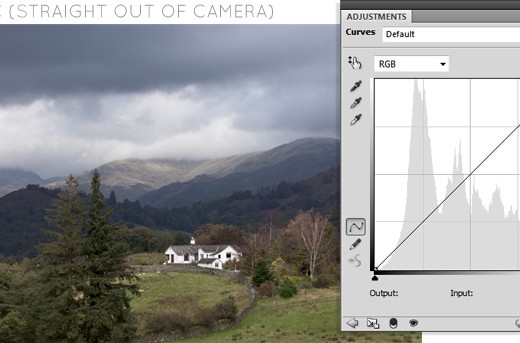
    This is quite a science (and worthy of a lengthy post of its own) but don’t be scared! Somewhere in any photo editing software will be a control called ‘levels’ (in Photoshop’ you go to Image>Adjustments>Levels or create a new adjustment layer) you’ll be presented with what looks like a histogram and if everything is OK will be a steady hump with no flattening out at either end. If there are gaps at the ends then pull the black and white sliders in to where the hump starts to rise. Gently does it though, you can very easily ruin things doing this if you go too far. 

    levels in photoshop - before and after

  2. A different crop/angle.
    Ideally every photo we took would be framed perfectly and wouldn’t need any cropping, but the truth is, this isn’t always possible. If you are cropping I would recommend trying to keep the proportions of the original, or try it as a square – my favourite film cameras produce photos that are square (the ones that take 120 film and of course my Polaroid). Cropping down to a perfect square can really change the balance of a photo and make it awesome! 

    crop your photo to a square

  3. Black and white.
    This really can make a huge difference to a photograph. If possible, don’t rely on a built in ‘convert to grayscale’ option in your software, you will always get a much better result if you can alter each colour layer/channel individually (in Photoshop create a new ‘black & white’ adjustment layer and experiment moving each of the six colour sliders until you get the result you want). 

  4. Desaturate and increase contrast and brightness.
    Sometimes the reason a photo looks a bit… cluttered is because there’s so much competing colour trying to grab your attention. Just bringing down the colour (saturation) and emphasising the contrast between the dark and light areas is enough to reinvigorate a photo. 

    brighten and desaturate

  5. Apply a texture.
    If you’re happy to play around in Photoshop (or a similar photo editing package) then you can create some quite beautiful effects by applying a texture on top of a photograph. I’ve created more detailed instructions in this tutorial, but it boils down to applying a not-too-contrasty image on top of your photo and changing the blend mode (to something like ‘soft light’) until you can see through it to the photo below and then adjust transparency if required. 

    add a texture

  6. Double-up.
    It’s always surprises me that by simply putting two photos next to each other they somehow become ‘more than the sum of their parts’ – they tell a mini-story; the viewers brain can’t help but try and make a connection. You don’t even have to pair with one of your own photos – why not collaborate with a fellow photographer or artist, select a theme and see how you both interpret the same subject. 

    fish-n-chips

  7. Add some typography.
    The right words coupled with the right photo can make an otherwise ordinary photography poignant and memorable. 

    toe the line

  8. Investigate actions and presets.
    All the main photo editing software packages have a way of importing in actions and presets so you can use the settings that somebody else has created. Some of these are free and some you will need to pay for. I’ve created this one myself and can recommend these ones by Michelle Black which I have loved using in the past. Try playing them back step-by-step to see exactly how certain effects have been created – it’s a great way to learn, and don’t feel you can’t go in and change things if you want to. (If you know of any other great actions or presets for Photoshop or Lightroom, I’d love to know about them)!
  9. Go extreme.
    Normally I would say ‘keep it subtle’, but if your photo really can’t be saved then why not take the opportunity to try out some extreme effects and filters – you never know, it might just be crazy enough to work!extreme editing in photoshop
  10. Do nothing.
    Sometimes you need to embrace your work for what it is and love it despite any flaws you may or may not see. There have been many photos I’ve taken that I’ve hated (or at least been disappointed by) and often these are the ones that have been adored by others – you’re not always the best judge!

Do you have any before and after photos? Show me, show me, I’d love to see them!

12